iOS End-User Scanner App Design¶
Date: 2026-05-14
Purpose: - design a production-oriented iPhone scanner experience, separate from the current native verifier test harness - define how the iPhone app and laptop Web UI work together in the public PoC - identify the backend contract needed before this becomes a real end-user scanner rather than a lab client
1. Product Framing¶
Working product name:
- QR Trust
Core user promise: - scan first - verify before opening - explain the result in plain language
The iPhone app should not feel like a developer harness. It should feel like a scanner that protects the user from confusing QR outcomes:
- known issuer and approved destination
- known issuer but changed destination
- signed but unknown issuer
- unverified QR
- active block condition
The laptop Web UI remains the companion surface for:
- issuing or displaying demo QR codes
- managing example issuer state and destination policy
- teaching, research review, and evidence capture
- operator/researcher inspection
The phone is the scanner. The laptop is the issuer/operator/demo console.
2. Important Architecture Shift¶
The current iOS harness is not yet an end-user scanner.
Current harness behavior: - the phone generates a demo session - the phone receives the certificate and issuer state - scanned QR payloads are verified against that active demo session
That is correct for deterministic evidence capture, but it is not how an ordinary scanner should work.
End-user scanner behavior: - the phone scans a QR payload from the world - the phone sends the raw QR payload to the verifier - the verifier resolves issuer state, certificate state, destination binding, runtime safety, and freshness from its own trust cache - the phone receives a user-facing decision state
Implemented backend contract:
Input:
Output:
{
  "decision_state": "verified_issuer",
  "open_allowed": true,
  "primary_message": "Verified issuer and approved destination.",
  "issuer": {
    "name": "Acme Example",
    "tier": "business",
    "status": "active"
  },
  "destination": {
    "display_url": "https://acme.example/pay",
    "host": "acme.example",
    "binding": "approved"
  },
  "signals": [
    { "layer": "issuer", "state": "recognized" },
    { "layer": "destination", "state": "bound" },
    { "layer": "runtime", "state": "clean" }
  ],
  "actions": [
    { "id": "open", "label": "Open site", "style": "primary" },
    { "id": "details", "label": "Why this result?", "style": "secondary" }
  ]
}
The existing /verifier/verify-scanned stays for the deterministic lab harness.
The scanner-first iPhone flow targets /scanner/decisions, which accepts only
the captured QR payload and returns a user-facing decision state.
3. Audience¶
Primary: - ordinary users scanning payment, menu, login, event, delivery, or service QR codes
Secondary: - students and professors evaluating the trust model - developers testing scanner and verifier behavior - researchers comparing QR security outcomes
The same app can serve all three only if advanced details are progressively disclosed. The first screen must be usable by a non-technical user.
4. App Navigation¶
Recommended tabs:
Default launch:
- open directly to Scan
- camera is ready after permission is granted
- no dashboard before the scan
Advanced/developer content: - hidden under result details and Settings - never blocks normal scan/open flow
5. Core Screens¶
5.1 Scan Screen¶
Goal: - make the user comfortable scanning without explaining the whole research model first
Layout:
Verify before opening"] CAM["camera preview
rounded scan frame"] STATUS["Ready to scan
We check issuer, destination
and current safety first."] TITLE ~~~ CAM ~~~ STATUS end classDef header fill:#e8eefc,stroke:#334e9a,color:#172554,stroke-width:2px; classDef viewport fill:#f1edff,stroke:#7c3aed,color:#2e2153,stroke-width:1.5px; classDef status fill:#e8f8f5,stroke:#0f766e,color:#123c38,stroke-width:1.5px; class TITLE header; class CAM viewport; class STATUS status;
The three regions stack in that order; the connectors are layout only and carry no flow meaning.
Interactions:
- scan automatically when QR is centered
- freeze the frame after capture
- show Checking... for network verification
- transition into a decision sheet
Do not: - immediately open the QR destination - show raw JSON by default - make the user choose a scenario before scanning
5.2 Decision Sheet¶
Goal: - tell the user what to do next
The result should be a bottom sheet with one dominant state.
Accepted:
Blocked:
Blocked
Destination changed

This QR no longer points to the destination approved by the issuer.

[Do not open]
[View details]
Unverified:
Unverified QR

No recognized trust signal was found.
This does not prove the QR is malicious.

[Continue with caution]
[View destination]
Signed unknown issuer:
Signed, unknown issuer

The QR has a valid signature, but the issuer is not recognized by this trust
program.

[Continue with caution]
[Why this matters]
5.2.1 Rendered decision states¶
The frames below are design renders exported from the Scanner UX States — iOS
Figma board. They are not captures of a running build, and the reference
implementation does not yet emit every state shown here.
They serve both this section and §5.3: each frame is iPhone 393 x 852 and shows the decision sheet with the trust strip already expanded, so one set of images covers the sheet and its explanation.
The board follows SCANNER_UX_STATES.md, which
enumerates seven scanner decision states. The four sheets sketched above are
archetypes; these seven are the states those archetypes are drawn from.
Read colour and wording as two separate channels. Colour follows severity, wording follows state. States 1, 2 and 5 all render amber and are unrelated to each other — the headline, not the colour, is what distinguishes them.
State 0 — unreadable capture (unreadable_capture)
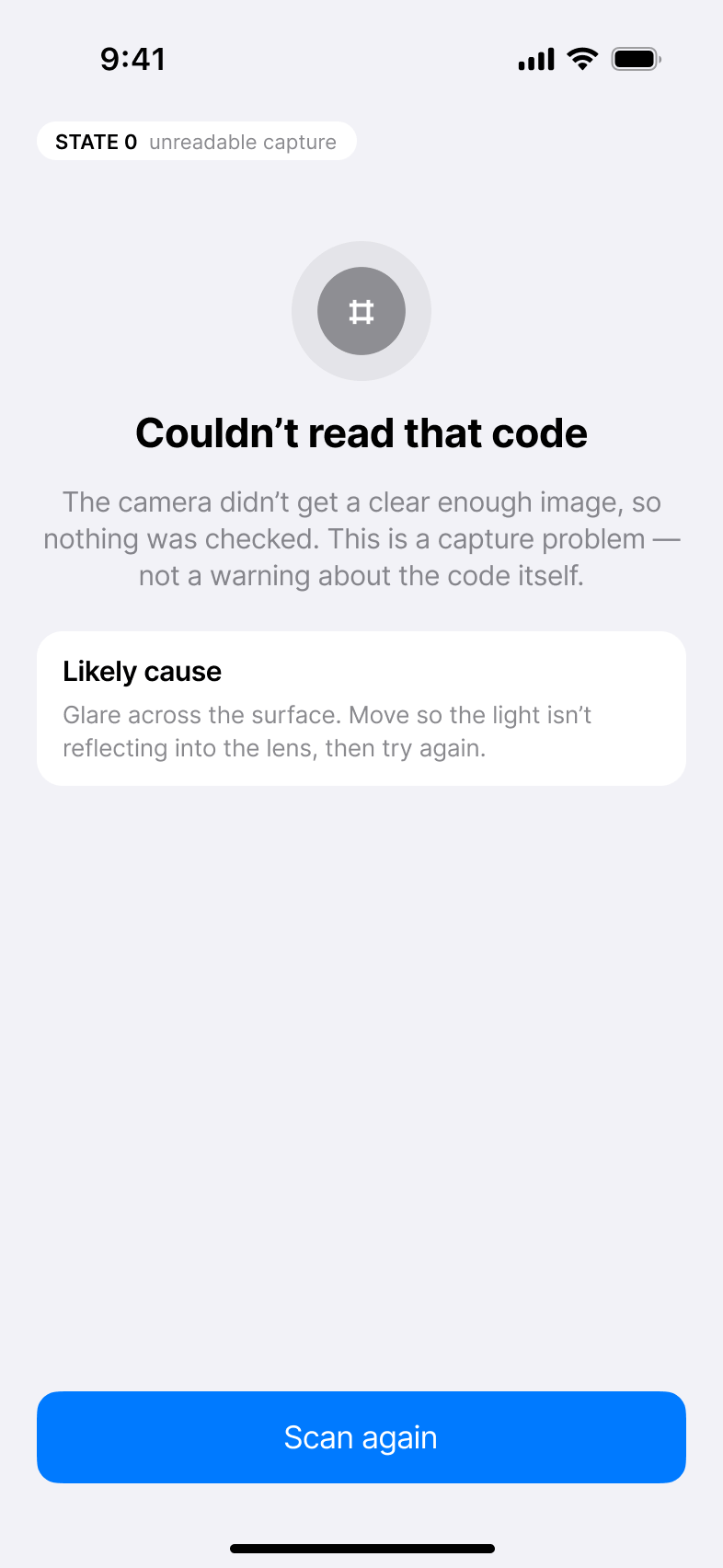
Decoding failed, so no trust layer ran. This is the one state with no trust strip: there is no evaluation to explain.
State 1 — unverified (unverified)
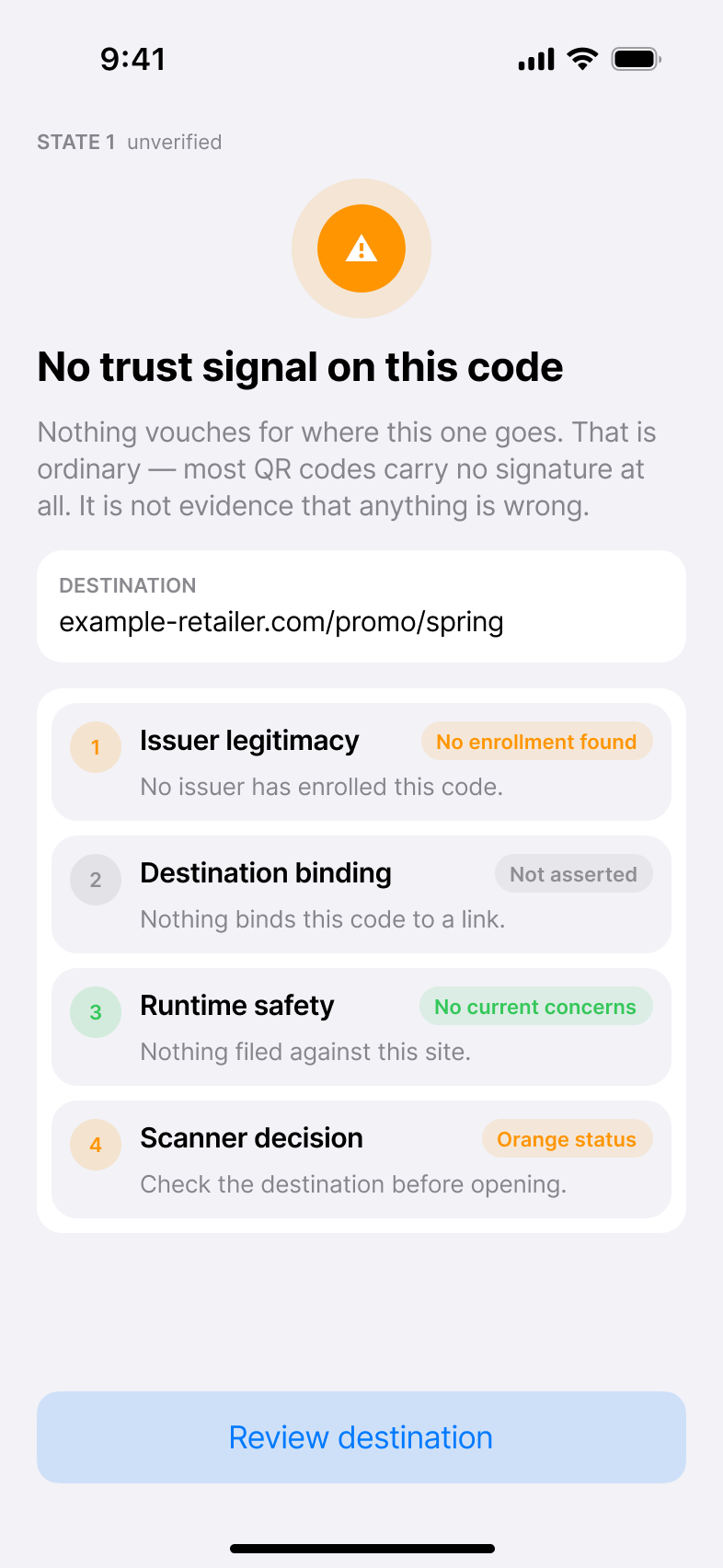
An ordinary QR code with no trust signal attached. Absence of a signal is not evidence of harm, and the copy must not imply otherwise.
State 2 — signed, unaccepted issuer (signed_unknown_issuer)
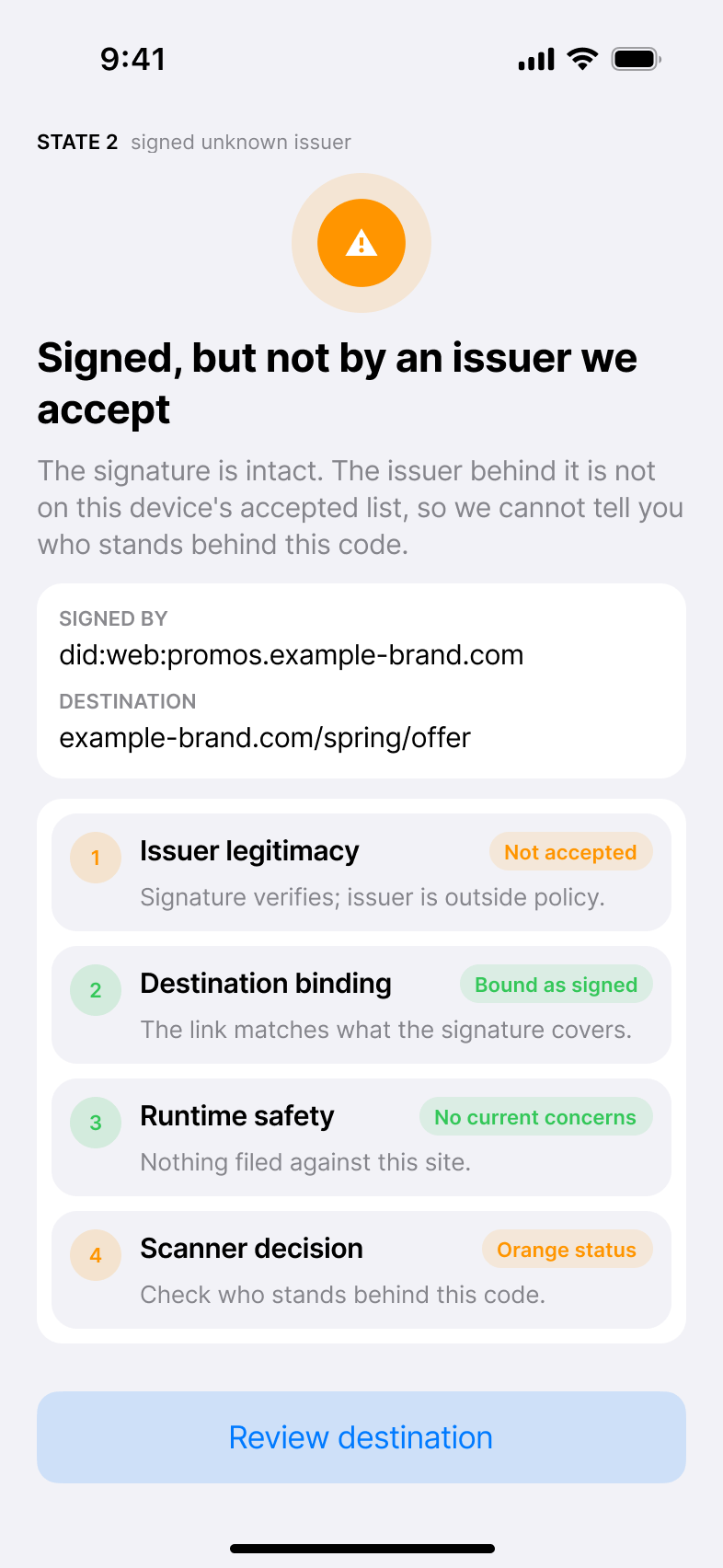
The signature verifies, but the issuer is outside the accepted set. The wire
label is signed_unknown_issuer, retained for compatibility after the state was
renamed — "unaccepted" is a policy decision, not a failure to recognise.
State 3 — verified issuer (verified_issuer)
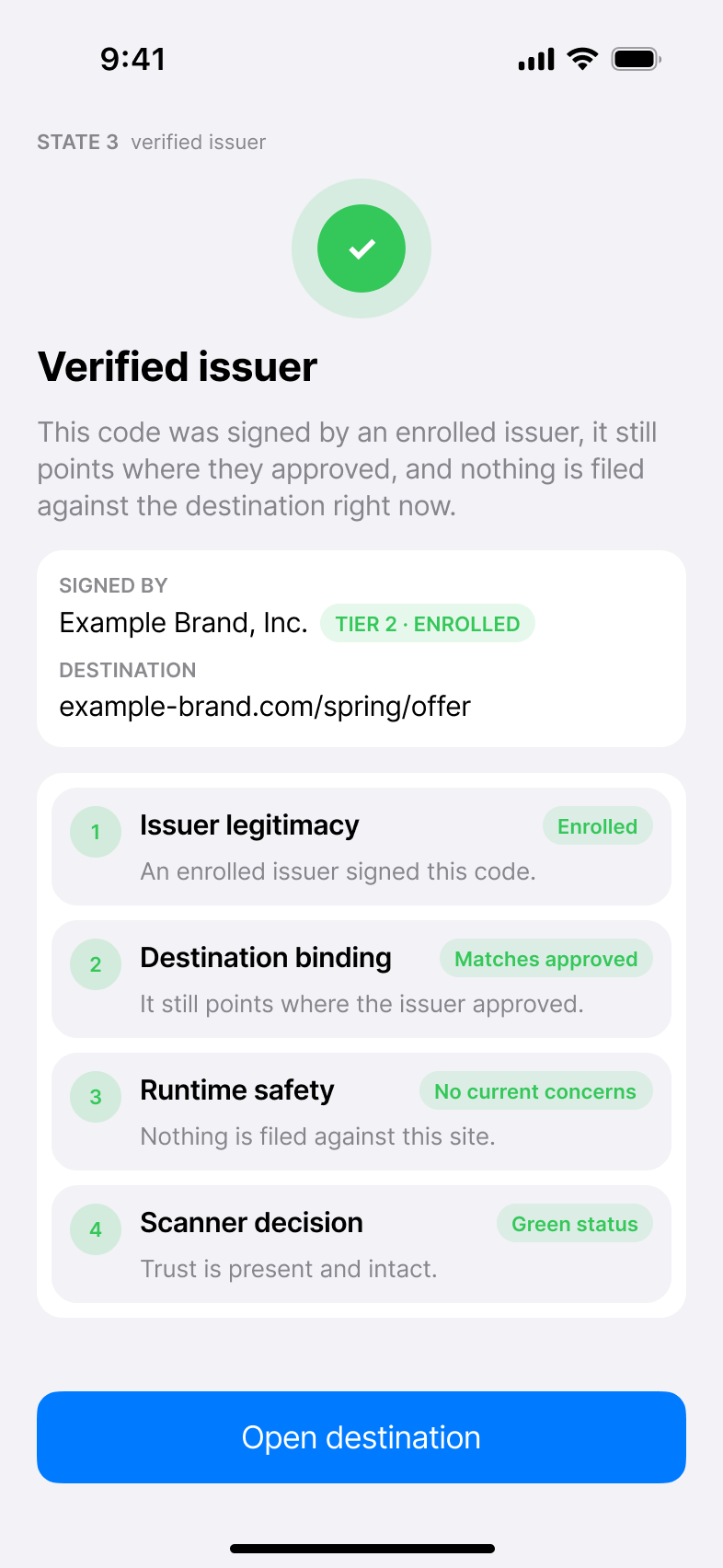
All four layers pass. This is the only state that offers a plain primary action with no friction.
State 4 — destination changed (no wire label assigned)
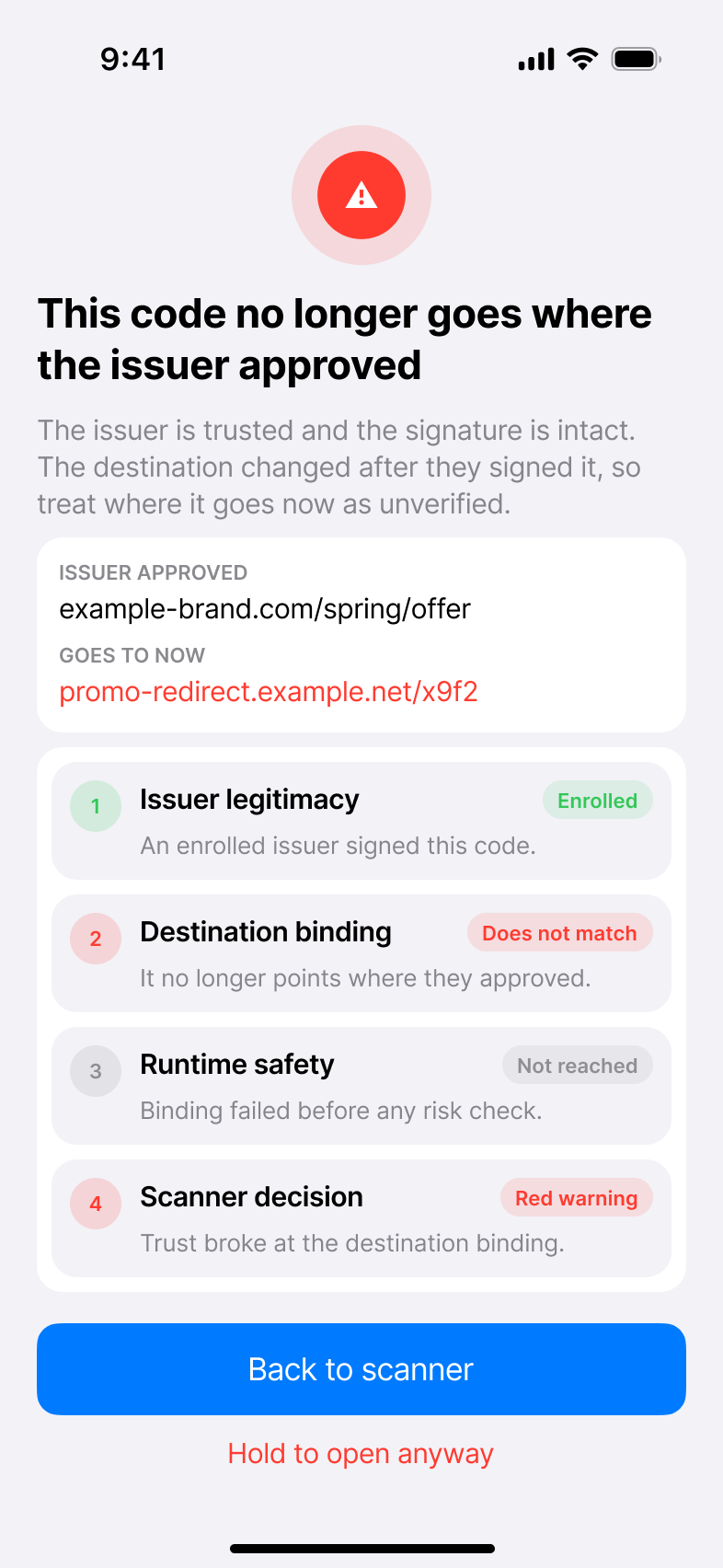
Specified but not yet emitted. SCANNER_UX_STATES.md assigns this state no wire
label and instructs implementers not to infer one, which is why this frame
carries no state chip while the others do.
Two things follow for implementation. Runtime safety reads Not reached, not
clean — binding failed before any risk check ran, and reporting an unrun check
as passing would overstate what is known. And the severity is red while the
semantics are a strong warning, not a hard block: the escape hatch is present,
deliberately behind a hold gesture.
State 5 — verified issuer, destination risky (verified_issuer_destination_risky)
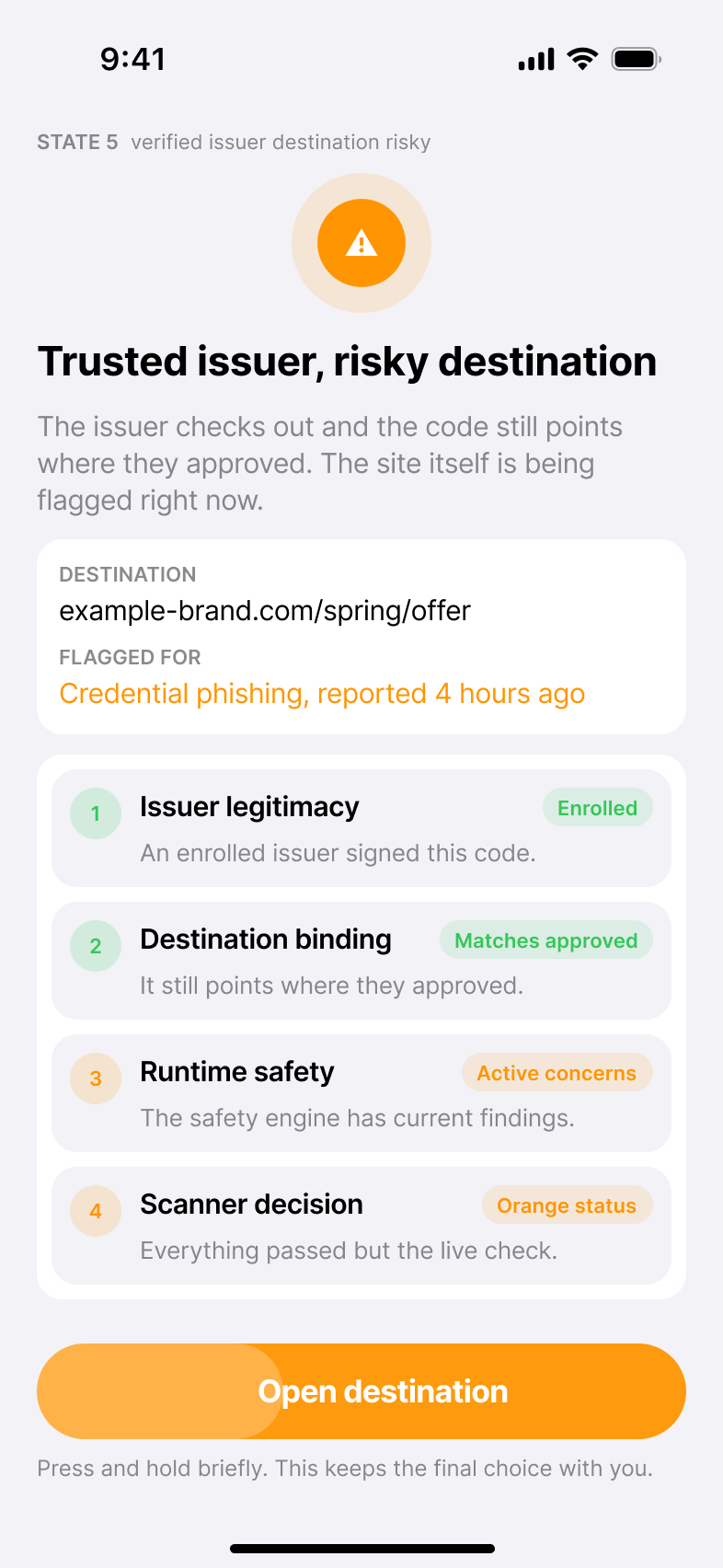
Issuer trust and destination safety disagree. The issuer did nothing wrong, so the copy blames the destination rather than the brand.
State 6 — blocked (blocked)
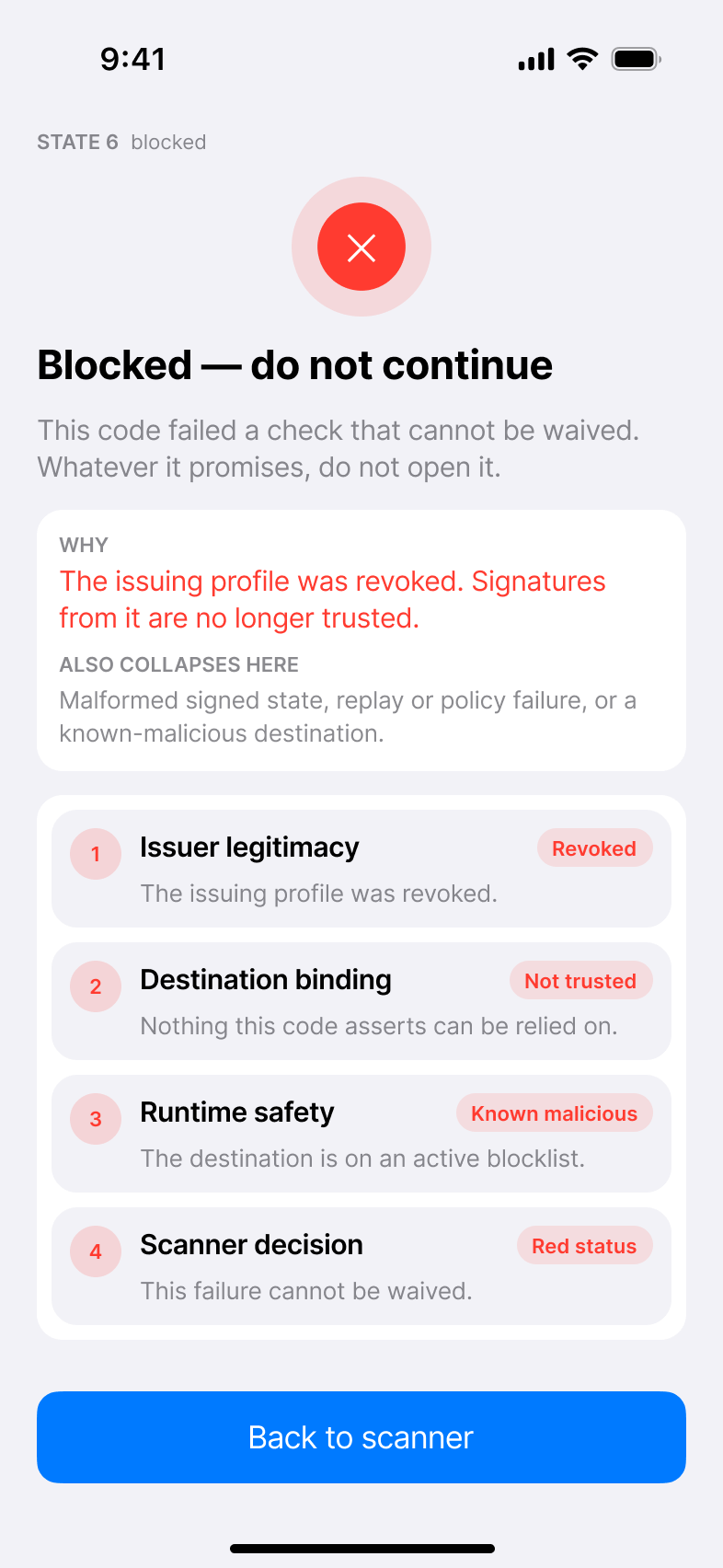
The only state with no escape hatch. Several distinct failures collapse here, so the sheet says so rather than implying a single cause.
Coverage: the board covers this section and §5.3 only. §5.1 Scan Screen, §5.4 History, §5.5 Learn and §5.6 Settings have no Figma frames yet — the wireframes and prose in those sections remain their only reference.
Sample identity: the ASCII blocks in §5.2 predate the board and still use
Acme Example / acme.example/pay, while the renders and
SCANNER_UX_STATES.md use Example Brand, Inc. / example-brand.com. Both are
illustrative, but the two should be reconciled the next time §5.2 is edited.
5.3 Explanation View¶
Goal: - teach the model only after the user asks for detail
Use a compact trust strip that walks the layers in order:
recognized"] --> D["Destination
approved"] D --> R["Runtime safety
clean"] R --> O["Decision
open allowed"] classDef pass fill:#e8f8f5,stroke:#0f766e,color:#123c38,stroke-width:1.5px; classDef allow fill:#dcfce7,stroke:#15803d,color:#052e16,stroke-width:2px; class I,D,R pass; class O allow;
For failures, highlight the first blocking layer and show the ones after it as unevaluated rather than passing:
recognized"] --> D["Destination
changed"] D --> R["Runtime safety
not reached"] R --> O["Decision
blocked"] classDef pass fill:#e8f8f5,stroke:#0f766e,color:#123c38,stroke-width:1.5px; classDef breaks fill:#fee2e2,stroke:#b91c1c,color:#450a0a,stroke-width:2px; classDef unrun fill:#eef1f5,stroke:#94a3b8,color:#334155,stroke-width:1.5px,stroke-dasharray:4 3; class I pass; class D,O breaks; class R unrun;
Runtime safety is drawn dashed because binding failed before that check ran.
Reporting an unrun check as clean would overstate what is known.
This maps directly to the paper without showing a dense academic diagram.
Rendered, this strip appears inline in every frame in §5.2.1 — the pass example above is State 3, the failure example is State 4.
The failure chain ending in blocked is not a discrepancy: blocked is the
decision_state the backend actually emits for a destination mismatch, which it
distinguishes from other blocking failures with
verifier_stage: "payload_revalidation". Severity is read from the decision
state and wording from the stage, so blocked selects the red treatment and
forces the hold gesture while the stage supplies the "Destination changed" copy.
The escape hatch survives — State 6 is the only state that withdraws it.
5.4 History¶
Goal: - let the user revisit recent scans without storing unnecessary sensitive data
History item: - decision state - normalized destination host - issuer name when available - timestamp - short reason
Privacy default: - store history locally only - do not store full QR payload unless developer mode is enabled - allow one-tap deletion
5.5 Learn¶
Goal: - explain QR trust in short lessons
Suggested lessons:
- Why decoding is not trust
- What a verified issuer means
- Why a verified issuer can still be risky
- What destination binding checks
- What unverified means
Each lesson should include one diagram and one example, not a long paper excerpt.
5.6 Settings¶
User settings: - trusted verifier service URL - privacy and history retention - haptic/audio feedback - open behavior after accepted scan - report suspicious QR
Developer mode: - show raw payload - show request ID - show verifier stage - export debug bundle
Developer mode must be off by default.
6. Decision State Model¶
The user-facing app should not expose backend stage names as the primary label. Backend stages remain useful in details.
Recommended user states:
| User state | Primary color | Primary action | Backend examples |
|---|---|---|---|
| Verified | Green | Open site | accepted |
| Verified, caution | Amber | Review before opening | runtime warning |
| Signed, unknown issuer | Amber | Continue with caution | unknown issuer |
| Unverified | Neutral | View destination | no trust signal |
| Blocked | Red | Do not open | payload_revalidation, expired (freshness block, cause object-expired), revoked, unsafe |
Important rule: - never label an unsigned or unrecognized QR as malicious unless there is an active safety signal
7. Laptop Web UI Role¶
The laptop Web UI should become the companion console.
Primary surfaces:
- Scenario builder
- choose issuer, destination policy, runtime state, validity window
- generate QR
-
display QR full screen
-
Live scan monitor
- show when the phone scanned
- show the verifier decision
-
show request ID and stage timeline
-
Teaching mode
- present the QR on the left
- present expected outcome and explanation on the right
-
let students scan with the iPhone app
-
Operator mode
- inspect issuer records
- inspect destination policy
- inspect envelope scan-budget and rate-limit posture
- export evidence packet
The Web UI should not be required for ordinary scanning in the final product. It is required for the PoC demo, evidence capture, and classroom/research use.
8. End-To-End Demo Flow¶
Laptop Web UI
  create scenario
  display QR

iPhone App
  scan QR
  send raw QR payload to verifier

Verifier API
  resolve issuer and destination state
  return decision state

iPhone App
  show decision sheet

Laptop Web UI
  optionally show live result timeline
The important improvement over the current harness: - the laptop owns scenario display - the phone owns scanning - the verifier owns trust resolution
9. Visual Direction¶
Style: - calm security product - closer to a banking/passkey verification app than a developer dashboard - light-first, with a high-quality dark mode later
Color tokens:
surface           #F7F3EA
surface-raised    #FFFFFF
ink               #171A17
muted             #6F746D
verified          #1F8A5B
caution           #B7791F
blocked           #B42318
trust-blue        #1D4E89
line              #E5DED2
Motion: - camera capture freezes into a result sheet - accepted sheet rises with a soft spring - blocked sheet uses a shorter, firmer transition - explanation rows reveal in sequence - respect Reduce Motion
Typography: - use native Dynamic Type and SF Pro - use large, plain result labels - use monospaced text only for payload hashes, request IDs, or developer details
10. Accessibility Requirements¶
Minimum: - all buttons 44pt or larger - no color-only result state - VoiceOver reads result, issuer, destination, and recommended action - haptics are supplemental, never the only signal - Dynamic Type support without clipped result text - visible cancel path from scanner and result sheet - accepted/open action requires an explicit tap
11. Privacy And Safety Requirements¶
The app should make three commitments clear:
- It checks before opening.
- It does not automatically open QR destinations.
- It stores scan history locally unless the user exports or reports it.
For public PoC: - do not send analytics - do not embed third-party tracking SDKs - keep debug export explicit - avoid storing complete QR payloads in history by default
12. First Build Milestones¶
Milestone A: Product Shell¶
Goal: - replace the harness-first native UI with a scanner-first product shell
Tasks:
- add Scan, History, Learn, Settings tabs
- move admin/demo controls under Developer Mode or Demo Mode
- add decision-sheet component
- keep current lab verifier API as a temporary backend
Milestone B: Scanner Decision Endpoint¶
Goal: - remove the need for the phone to hold demo certificate and issuer state
Tasks:
- add /scanner/decisions
- resolve QR payload server-side
- return user-facing scanner state
- keep /verifier/verify-scanned for deterministic lab tests
Milestone C: Laptop Companion Console¶
Goal: - make the Web UI the scenario issuer/display surface
Tasks: - add full-screen scenario QR display - add live scan timeline - add session result export - add classroom/reviewer mode
Milestone D: Evidence And Public Demo¶
Goal: - produce clean demo artifacts for the repo
Tasks: - capture iPhone screenshots for accepted, expired block, and mismatch block - export matching laptop Web UI screenshots - add README walkthrough - update release audit to require the final evidence set
13. First Implementation Recommendation¶
Start with Milestone A, but do not delete the current harness.
Recommended approach:
- keep VerifierLabApp as the iOS target
- refactor the current root view into a hidden Demo Harness screen
- make the new default screen Scan
- reuse the existing scanner, API client, haptics, and result models
- add the new /scanner/decisions endpoint after the app shell is clear
This lets the project keep working evidence tooling while moving toward a real end-user scanner.